CoreJob
Every CoreJob feature, in detail.
Attendance, hours, sites, projects, documents, suppliers, warehouse and invoicing in a single management system. For each module: what it does, who uses it and how it is configured. Modules are switched on in the configuration, one at a time, when you need them.
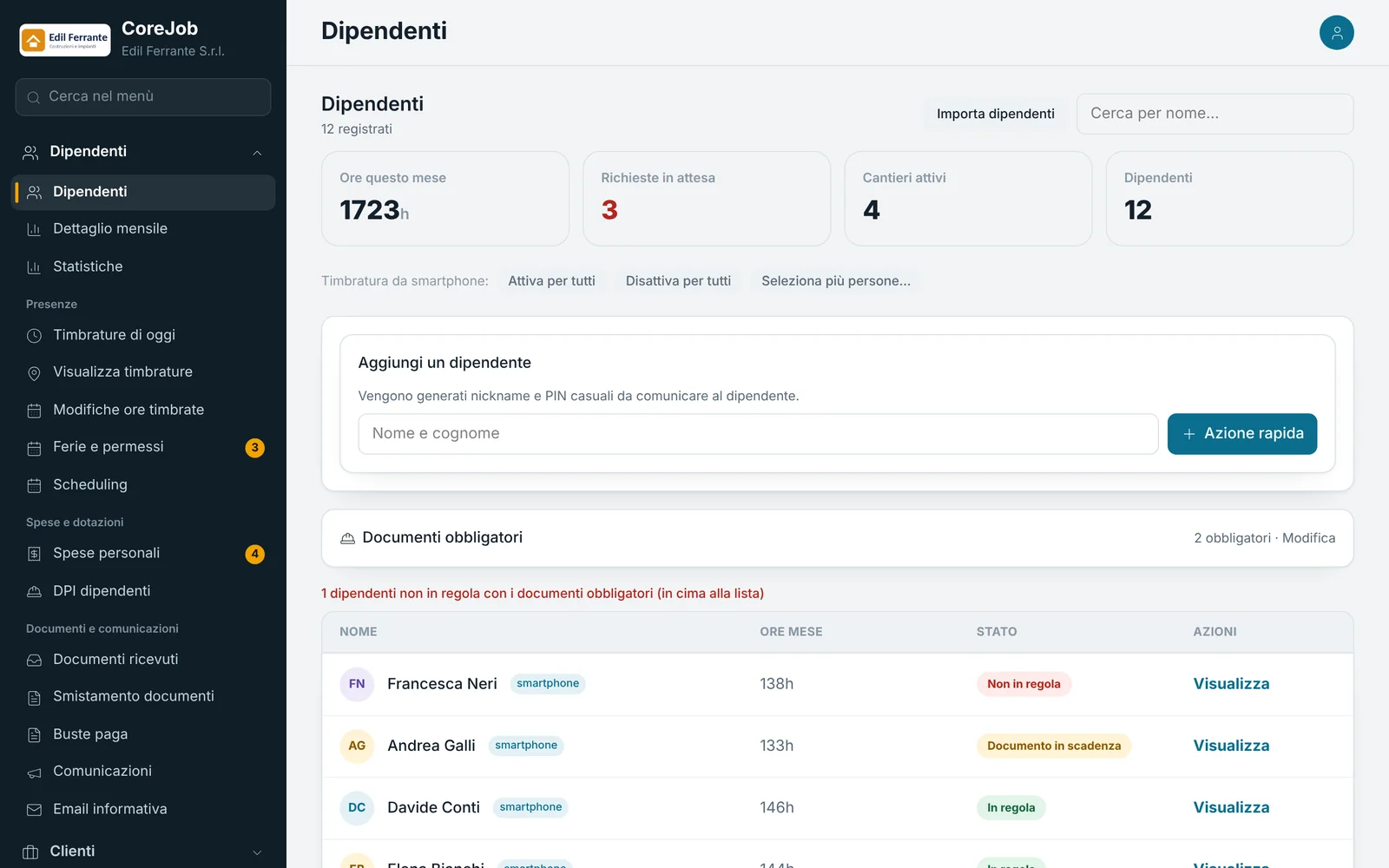
Time tracking
Three ways to clock in, one register.
The office chooses the most suitable method for each employee. Every clock-in is linked to the site or trip and goes straight into the hour count.
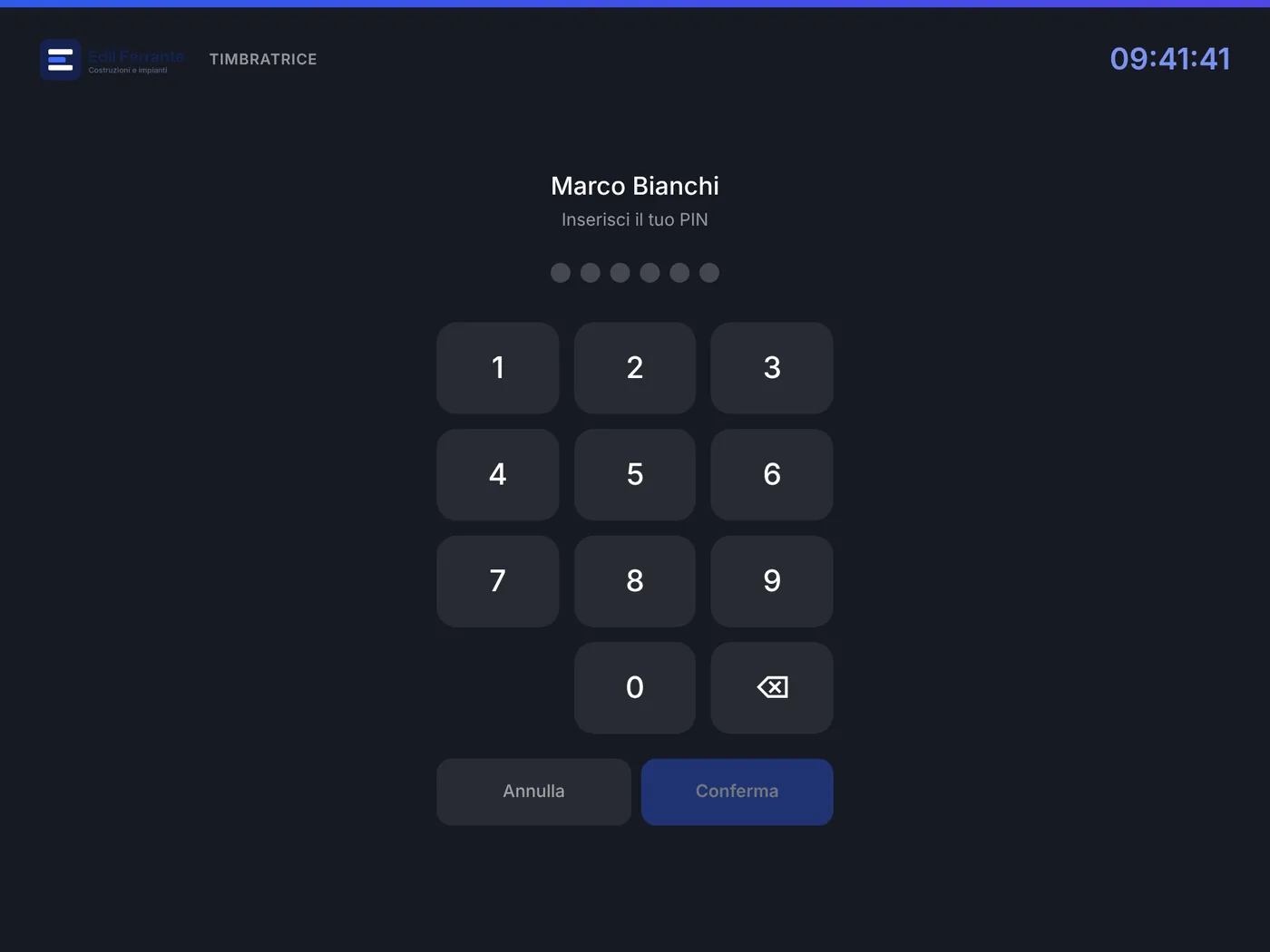
Face recognition
A tablet at the entrance to the site or workshop: the employee looks into the camera and the clock-in is recorded in their name. No borrowed badges, no signatures on paper.
RFID badge
At the reader in the office or warehouse. The office pairs each badge with its employee in a few seconds.
Smartphone
Clock-in, break, return and clock-out from the app, even when travelling, with undo for a few seconds if the tap was a mistake. It can be enabled for one employee, a group or everyone.
Company rules
Rounding of times with a tolerance, an overtime threshold, Saturdays counted as overtime, Sundays and public holidays kept separate, automatic time off for missing hours.
Corrections with approval
Changes to a clocked day can be forbidden, free or subject to approval: in that case the office sees, item by item, what changes.
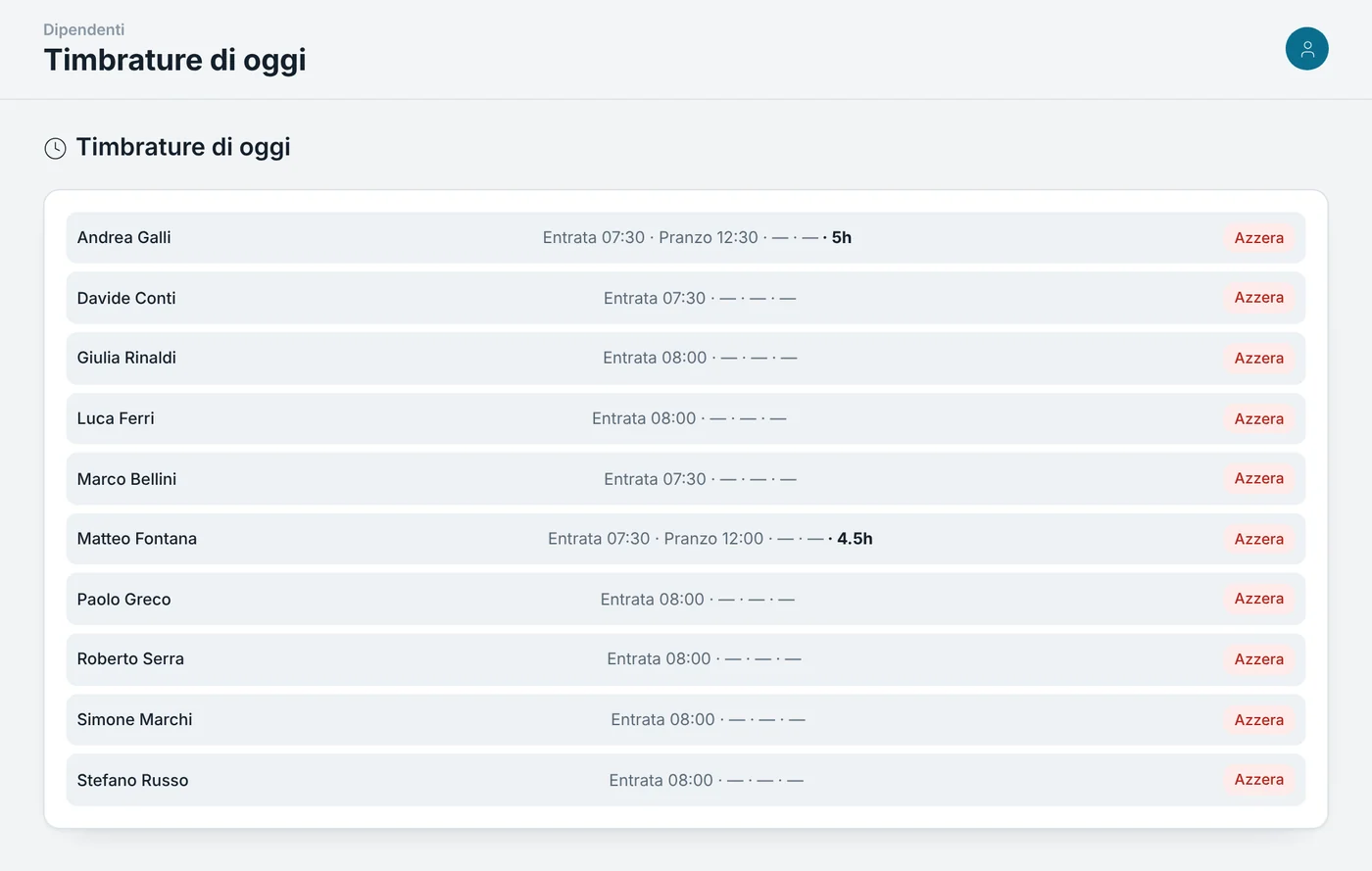
Today's clock-ins
Who has clocked in, at what time and where, in real time; a day recorded by mistake can be cancelled.
Location
The site is recognised from the position.
A feature you turn on with a switch: anyone clocking in from a smartphone is automatically allocated to the site where they are.
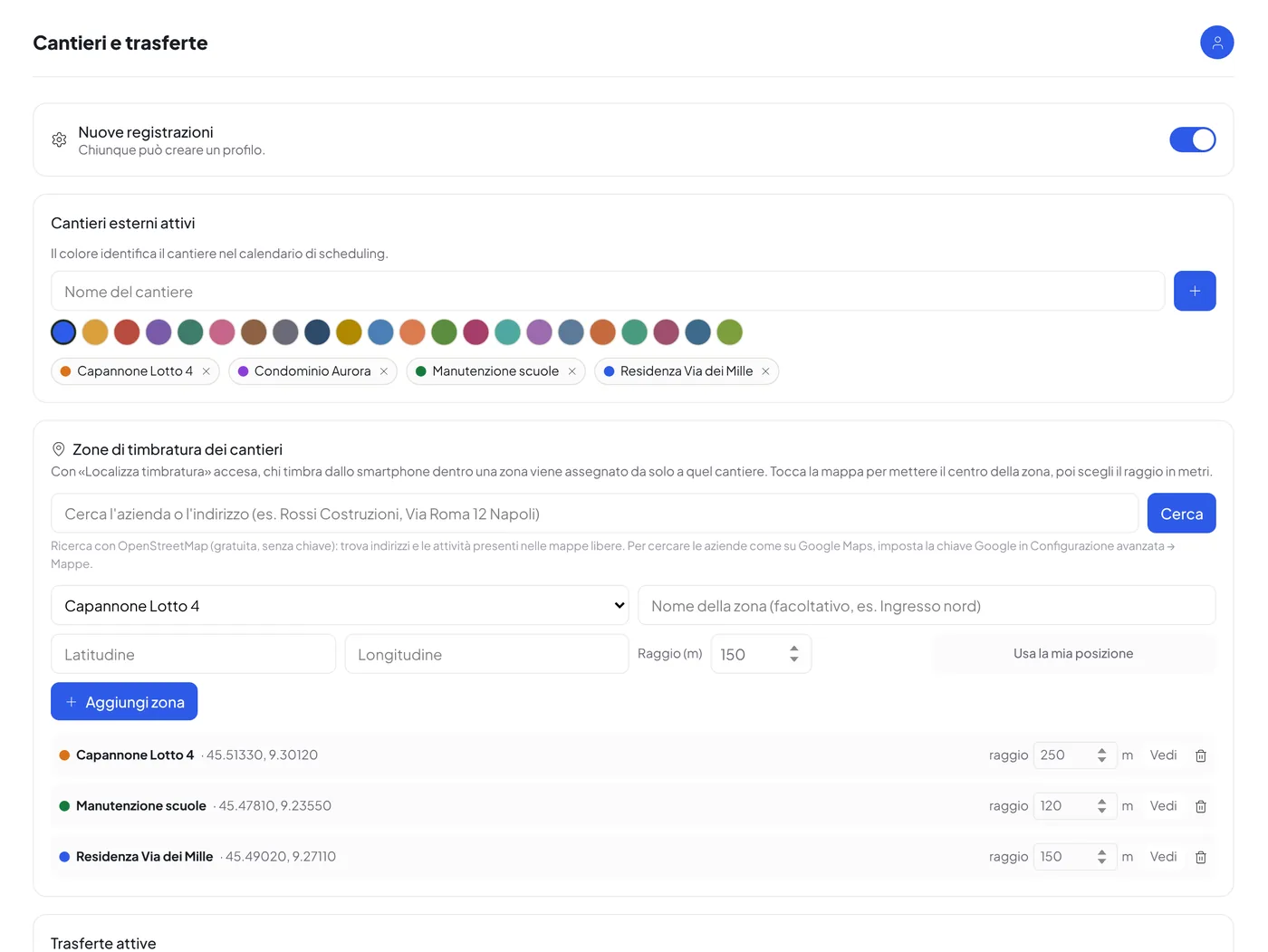
Site areas
For each site, an area on the map, with a centre and a radius. Addresses and companies are found on the map, with Google Maps or OpenStreetMap.
Automatic allocation
The first clock-in of the day that falls within an area determines the site; the day's hours are allocated accordingly.
Location optional or required
Normally a clock-in without a position is recorded and flagged; in required mode it is refused until the smartphone provides the position.
Clock-in map
For each employee, the clock-ins of a period on the map, with time, accuracy and the site recognised.
Hours, absences and payroll
From the hours register to the payslip.
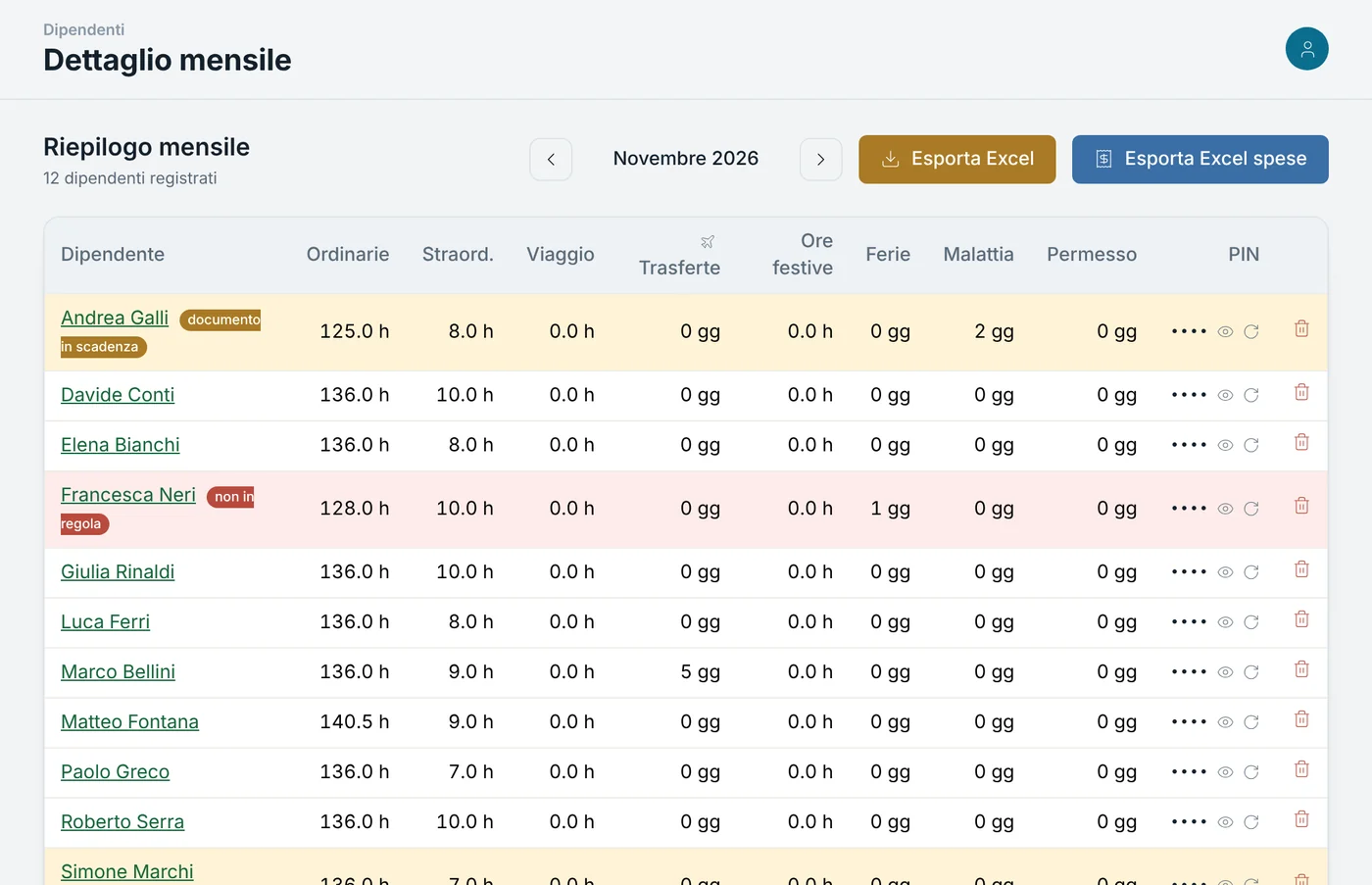
Regular, overtime and holiday hours, absences and approved expenses add up on their own, employee by employee. At the end of the month the summary for the payroll consultant is ready.
Hours register
Hours per day with site, trip or project, in two modes: the four times of the day with automatic calculation, or the totals.
Annual leave, time off and sick leave
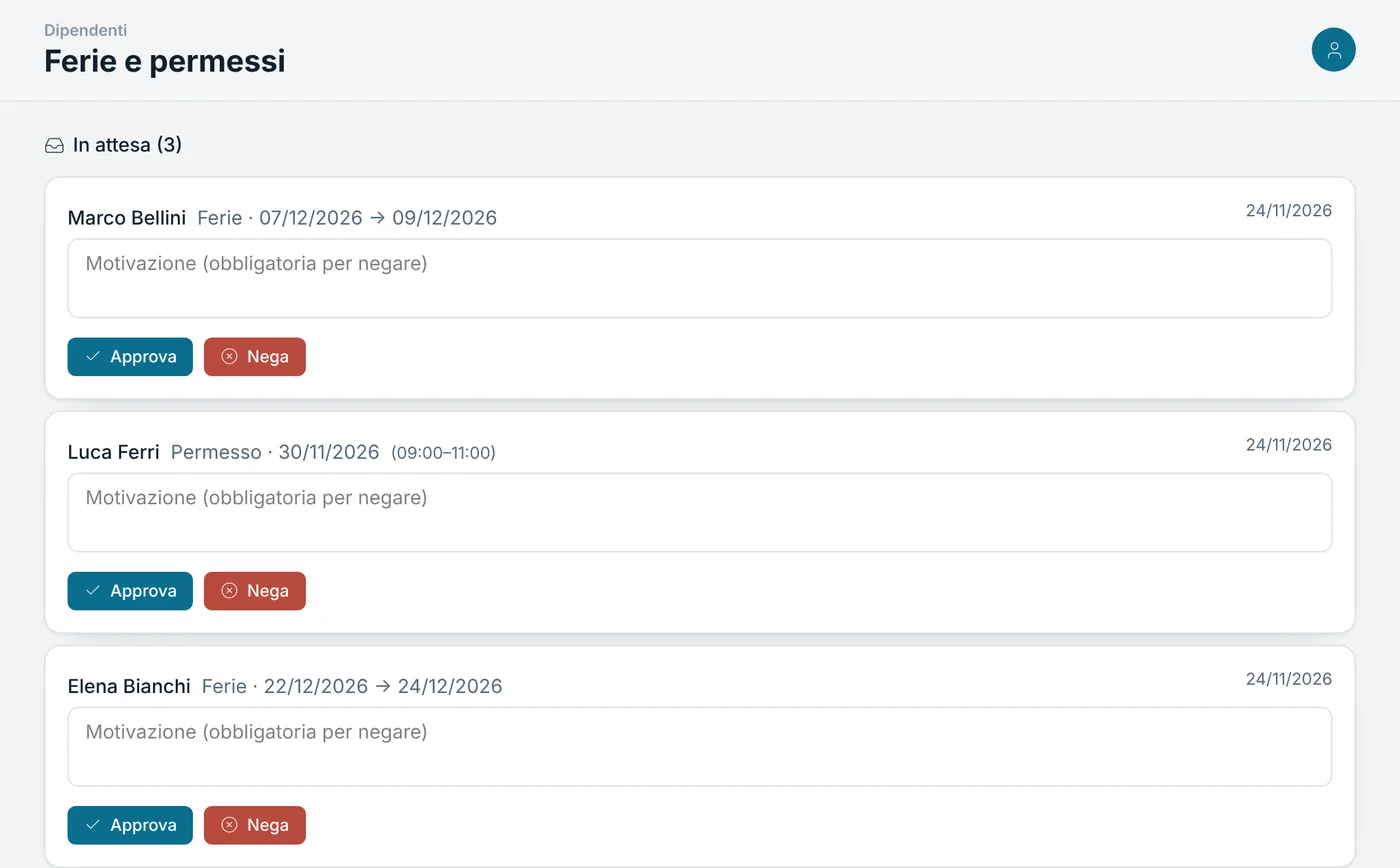
Requests start from the app; the office approves or rejects them with a reason and the employee receives the outcome with a notification. Approved leave updates the schedule.
Monthly detail and statistics
The month at a glance for all employees, with regular, overtime and holiday hours, absences and trips; statistics by employee and by site, exportable to Excel.
Summary for the payroll consultant
A monthly Excel file with hours and absences for all staff, in a format suited to payroll processing; it can go out by email on its own every month.
Payslips sorted
The consultant's single PDF is uploaded once: CoreJob recognises the employee page by page and delivers each person their own payslip, with a notification.
Hours report for each employee
Every month each person's hours report is generated and archived, also in their CoreCloud folder; if the hours of a closed month change, the report is updated.
Sites and statements
Every hour and every expense to its site.
Work is organised into sites and trips, with the people deployed and the costs that build up day by day.
Sites
Records with a colour, hour and expense budgets and progress that is always up to date; projects to split the hours of the same day.
Automatic statements
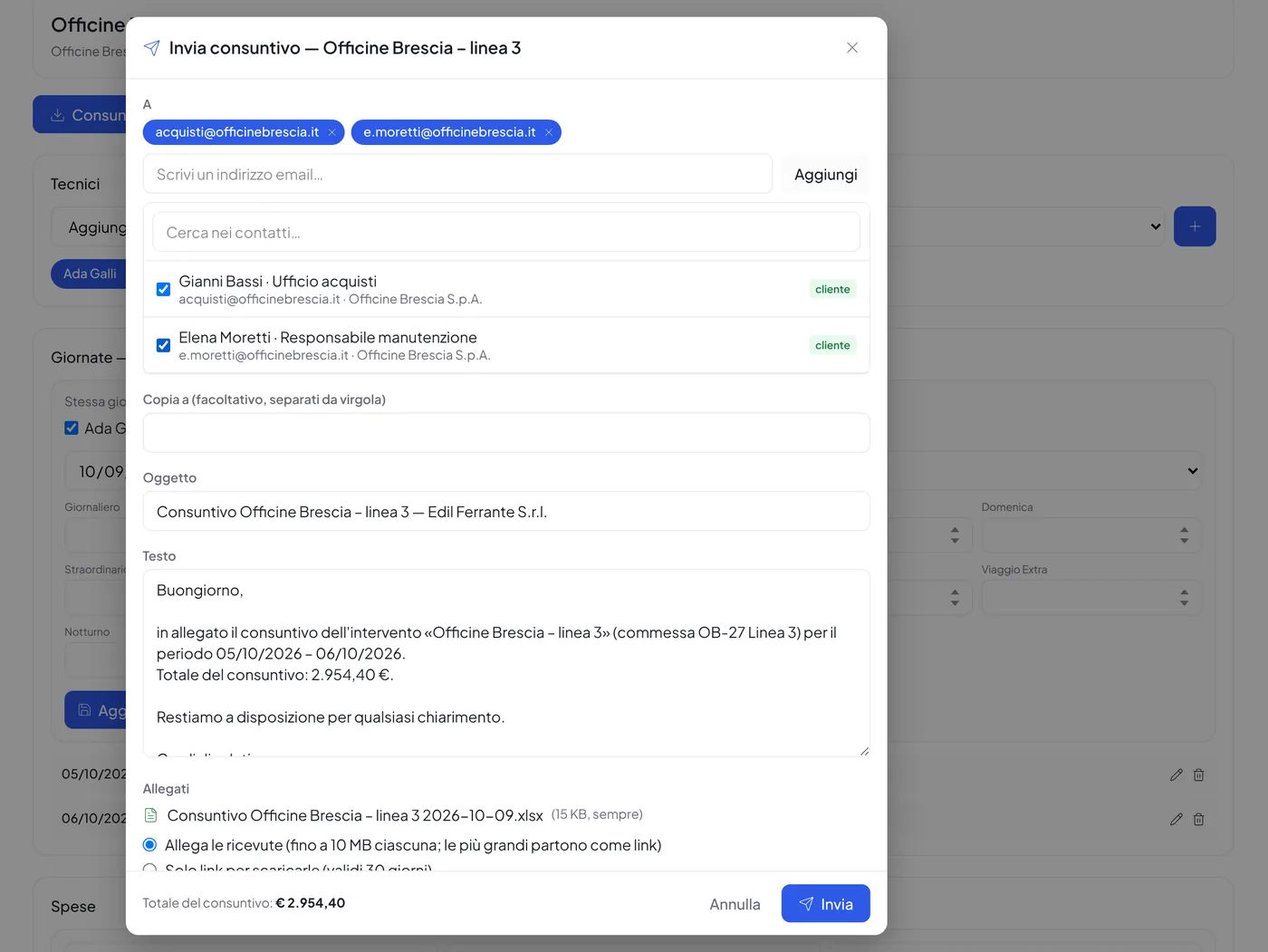
Hours recorded on a trip flow into its statement, with the daily, Saturday, Sunday, public holiday, overtime and travel items and the customer's rates, day rates included. Expenses linked to the trip are added in the same way.
Corrections always possible
Every line shows where it comes from. A day corrected by hand is no longer changed automatically and, if the hours change, the statement flags it.
Sending to the customer
The statement comes out in Excel with your logo and colours and goes out by email, with the receipts attached or available through a link.
Costs and supplies
Fixed and one-off company costs side by side; a price list of suppliers' items with price comparison.
Site diary
Notes for each day with photos and attachments, also archived in CoreCloud and available to the site's project manager.
Projects and boards
Every project has its own board.
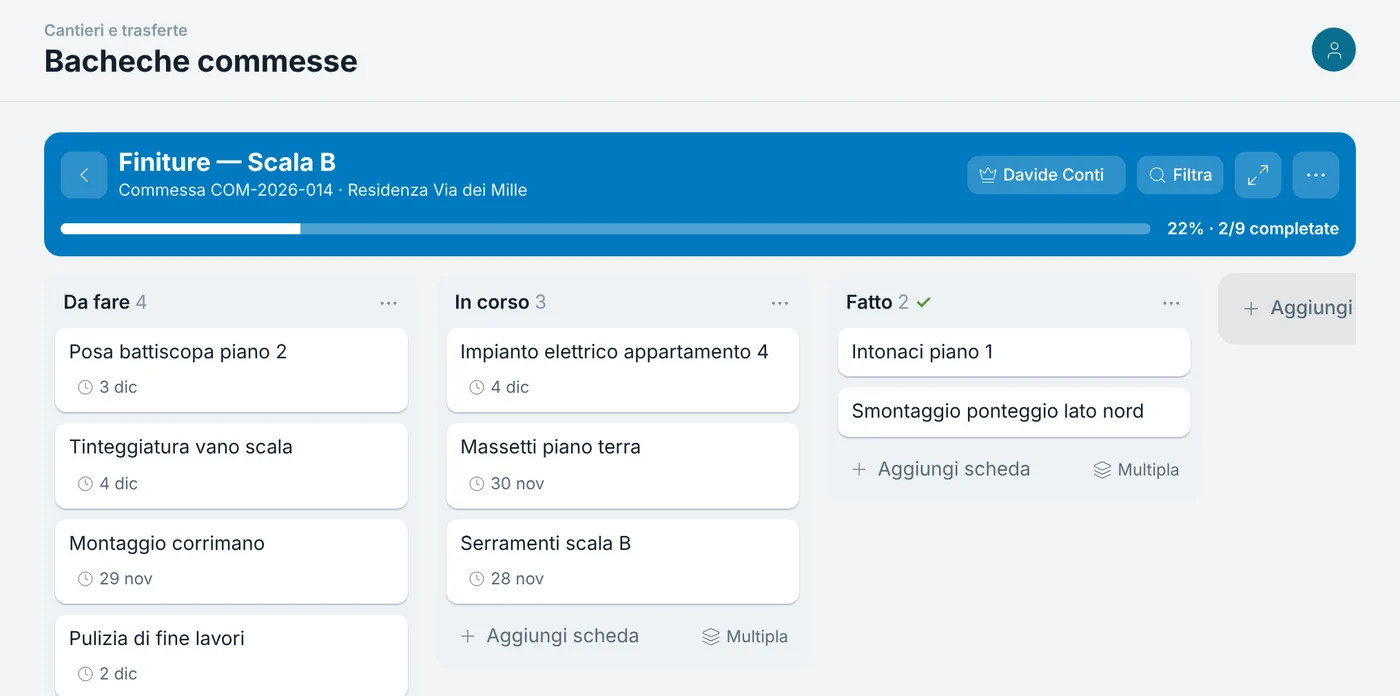
Lists, cards and checklists organise the work on each project, with the team, the project leads and the suppliers. Everyone sees and completes the tasks assigned to them, from a computer or a smartphone.
Lists, cards and checklists
Cards with due dates, labels, assigned people, checklists, comments and attachments, moved by dragging, even with a finger.
Project leads and team
A permanent project lead or one for a set period, with cover; the team and the portal's suppliers work on the cards assigned to them and receive an alert.
Controlled completion
Anyone closing a card with an incomplete checklist gives the reason, which stays on the card together with the missing items.
Several cards at once
From a template card and a list of names, several cards are created together, with checklists and assignments.
Project spreadsheet
The progress of all of a project's boards in an Excel file to send to the customer, in your colours.
Sync with Trello
A board connects to Trello and stays aligned both ways: lists, cards, checklists, labels, comments and attachments.
Scheduling
Who goes where, day by day.
The office sees who is assigned over the coming days and who is not, and assigns sites, trips or head office in a few steps.
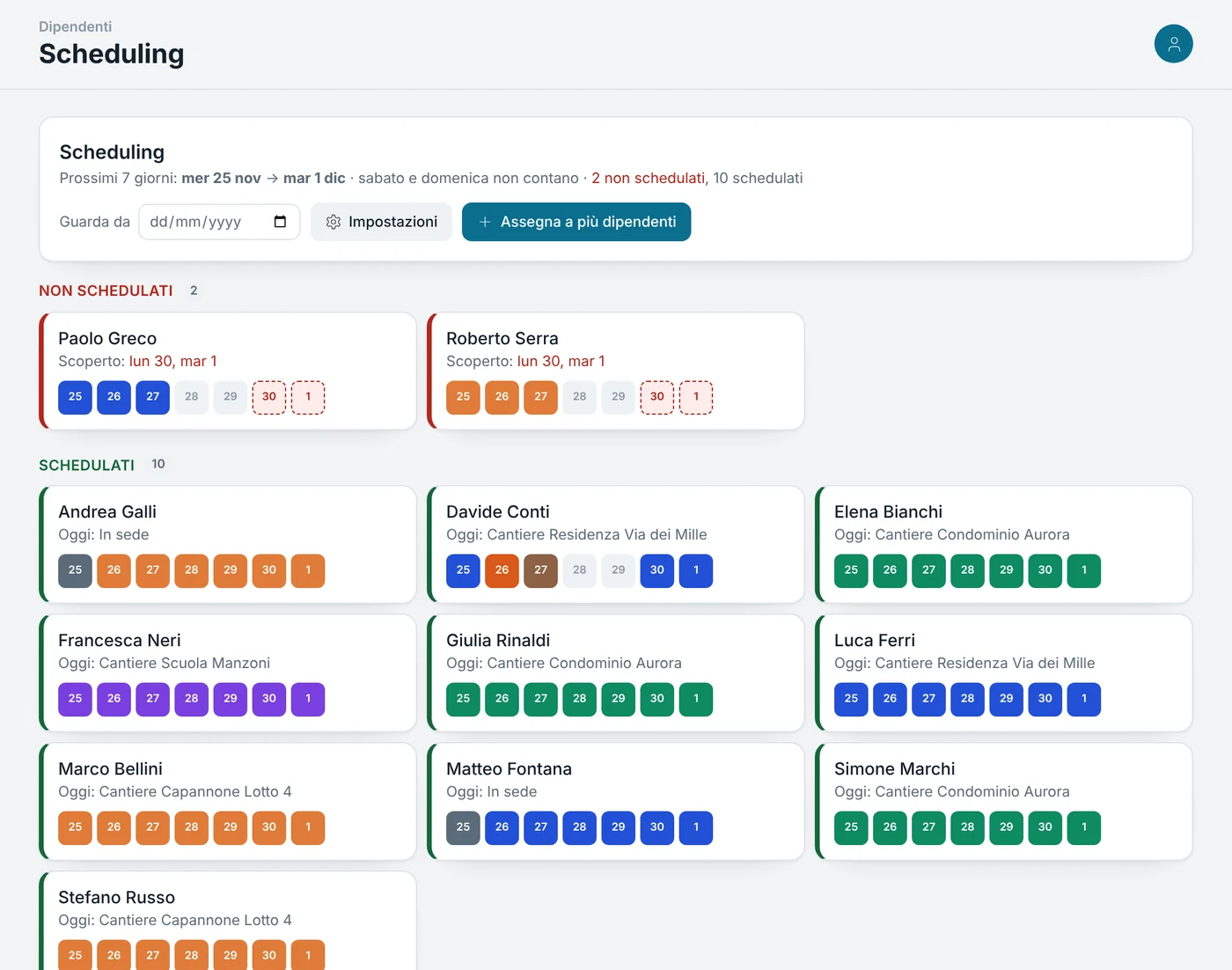
Assigned and unassigned
Over the chosen period, normally seven days, employees are divided into assigned and unassigned; anyone left uncovered for even a single day appears at the top.
Permanent and period assignments
An employee permanently on a site stays assigned until the assignment is closed; a specific period takes priority; “At head office” is always available.
Leave and sickness
An approved absence suspends the assignment without deleting it: when the absence ends, the assignment resumes on its own.
On the employee's smartphone
Everyone sees where they need to go today and on the following days, with a notification for every new assignment.
Project managers
A private area for every manager.
Project managers sign in with their own credentials to a dashboard with the same menu as the office, limited to the sites and trips assigned to them.
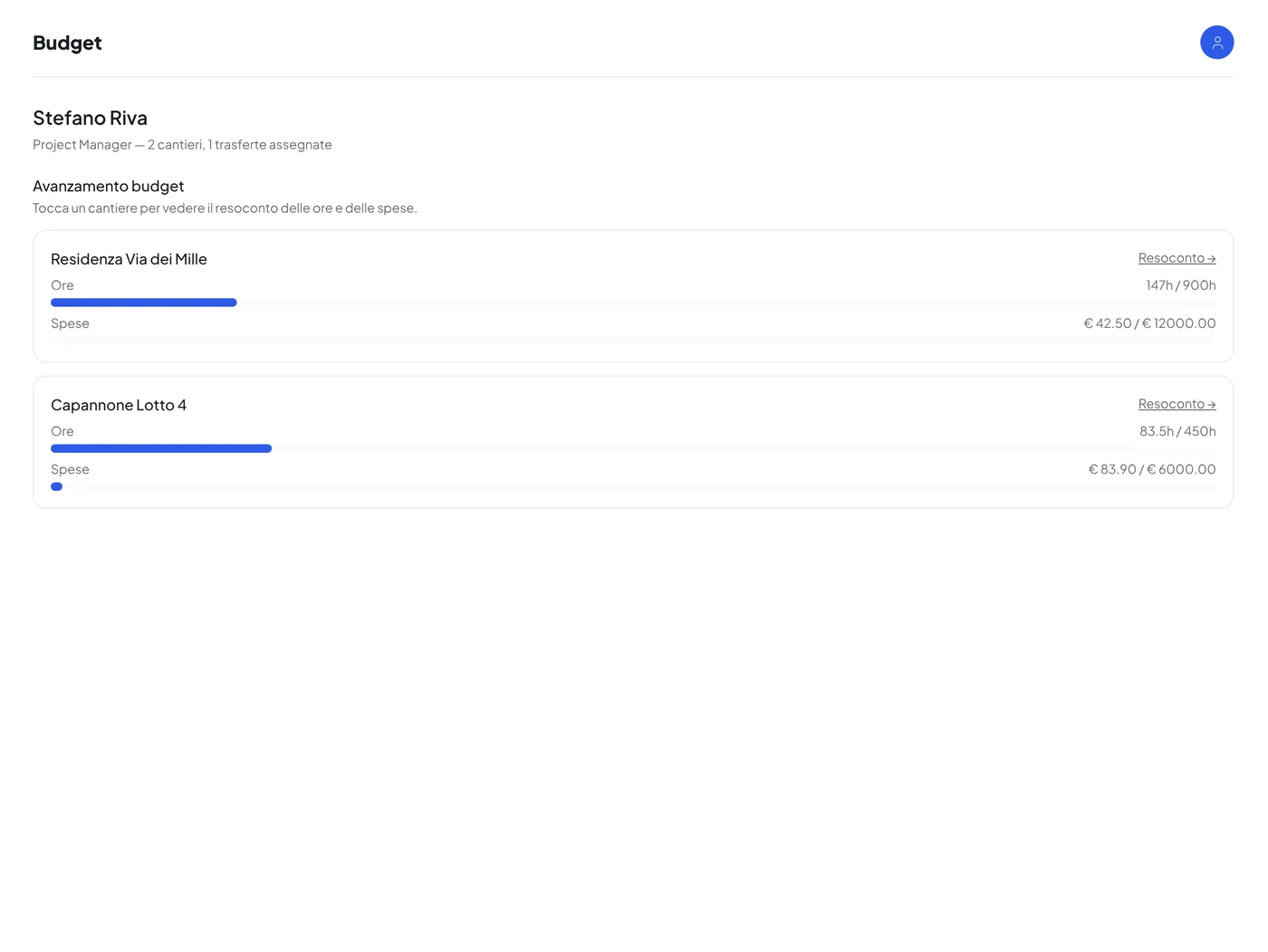
Budget and profitability
Progress of hours and expenses for each site, a summary by employee and by month, costs and revenue.
Every working day on their sites
Hours, team and deadlines include every day worked on their sites, even days split across several projects.
Statements and receipts
Trip statements are created and filled in directly; expense receipts are downloaded from the summary.
The team
Documents to send to the employees in their team, the expiry dates of their documents, notes and messages to the site.
Service and technical reports
The technician's report, signed by the customer.
The technician fills in the report with dates, technicians, hours, description and materials, and has it signed on the spot or remotely.
Signing on the spot
The customer signs with a finger on the technician's tablet or smartphone; the PDF goes straight to the chosen recipients.
Remote signing
The customer receives an email and signs from their own computer or smartphone with CoreDocs; the signed PDF comes back to CoreJob.
PDF on letterhead
Your letterhead as the background, with adjustable margins; long descriptions and several technicians laid out correctly across the pages, with photos and signatures.
The client's own form
When the customer requires their own form, the technician fills it in from the app and CoreJob writes the data onto the original PDF, with the signatures.
Technical reports on a template
Service reports with header, machines, photos and conclusions, in PDF and Word, on the template your client requires: the report for the next visit starts from a copy.
Archive
Reports stay in CoreJob, searchable by customer and by period and, with CoreCloud, also in the technical reports folder.
Documents and expiry dates
A colour for every document.
You decide once which documents are mandatory for everyone, with exceptions for individual employees. Each person's record holds the list, the upload, the expiry date and an indicator that changes colour on its own.
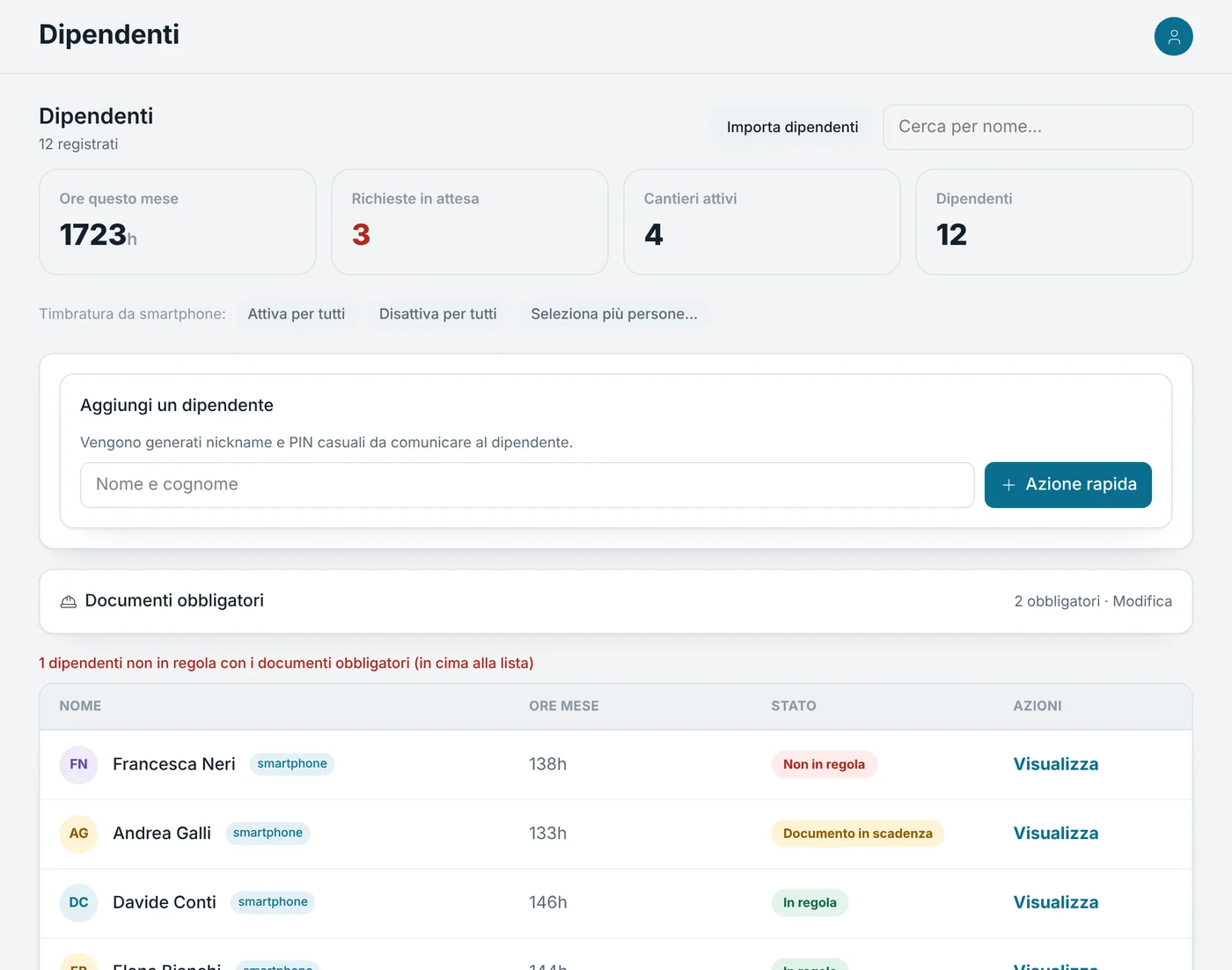
Automatic indicators
Green if valid, orange if it expires within thirty days, red if expired or missing. Anyone not compliant appears at the top of the employee list.
Document sorting
Upload one PDF with the whole team's medical check-ups or certificates: CoreJob suggests who each page belongs to and the expiry date read in the text, for you to check and confirm.
Documents received
Employees send certificates and documents to the office from the app; the office accepts or rejects them.
Documents for staff
Documents and circulars for everyone or for a single employee, with a notification on the smartphone.
Expenses and reimbursements
The receipt photographed, straightened, approved.
The employee photographs the receipt in the app and enters the type of expense and the site; the office approves or rejects it. Approved expenses flow into the statements.
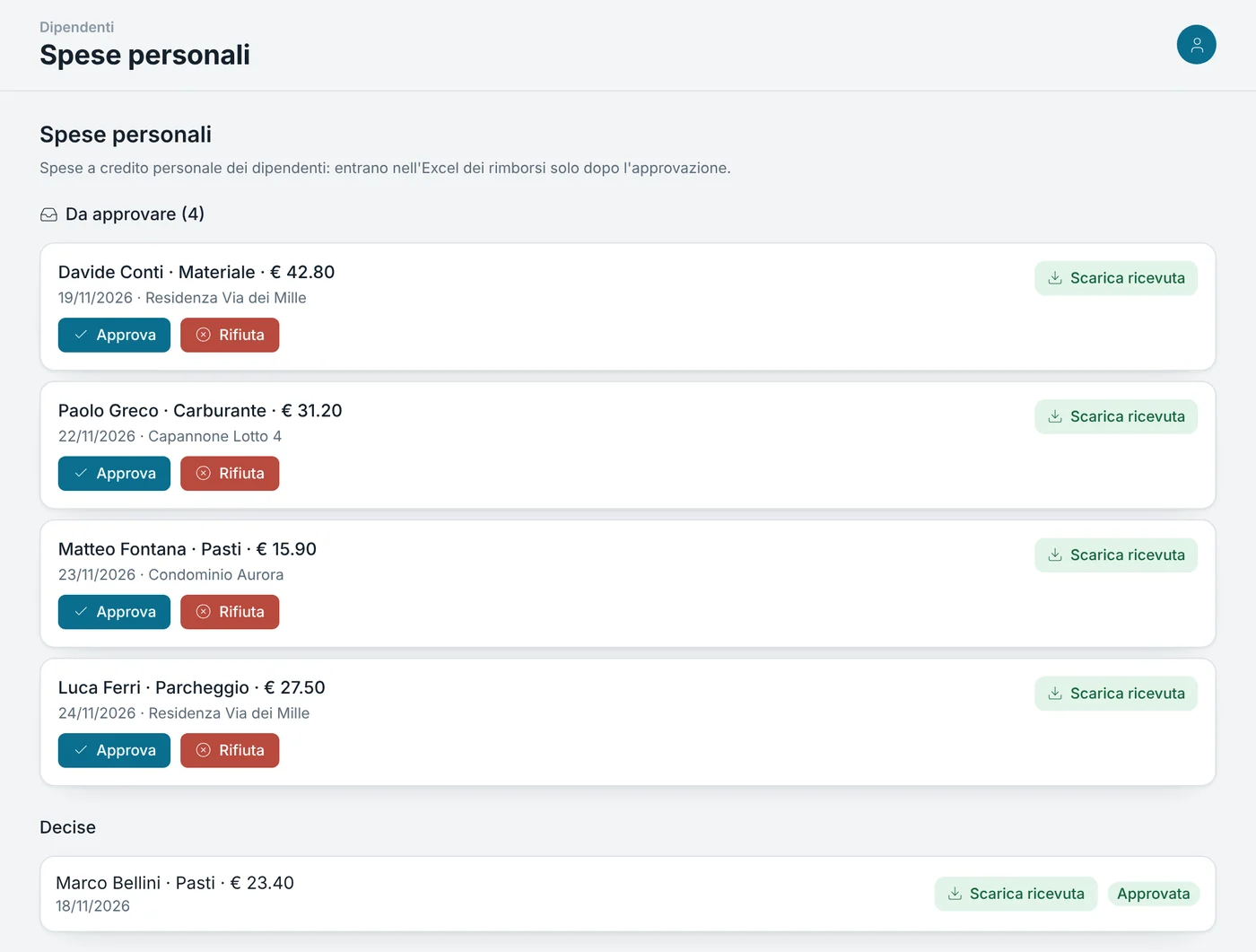
Built-in scanner
The photo is straightened and cleaned up on the smartphone: edges detected automatically, corners adjustable by hand, a black-and-white or colour version.
Linked to the trip
An expense recorded on a trip day is suggested already linked to the trip and flows into its statement.
Approval
The office sees pending expenses with their receipts and approves or rejects them with a reason; the employee receives the outcome.
Receipts always downloadable
Each receipt downloads with a name showing its date, type, amount and employee, according to each person's permissions.
Warehouse
Items, movements and stock value.
A warehouse that is easy to keep up to date: every goods-in and goods-out is a movement, and the stock level is always the sum of the movements.
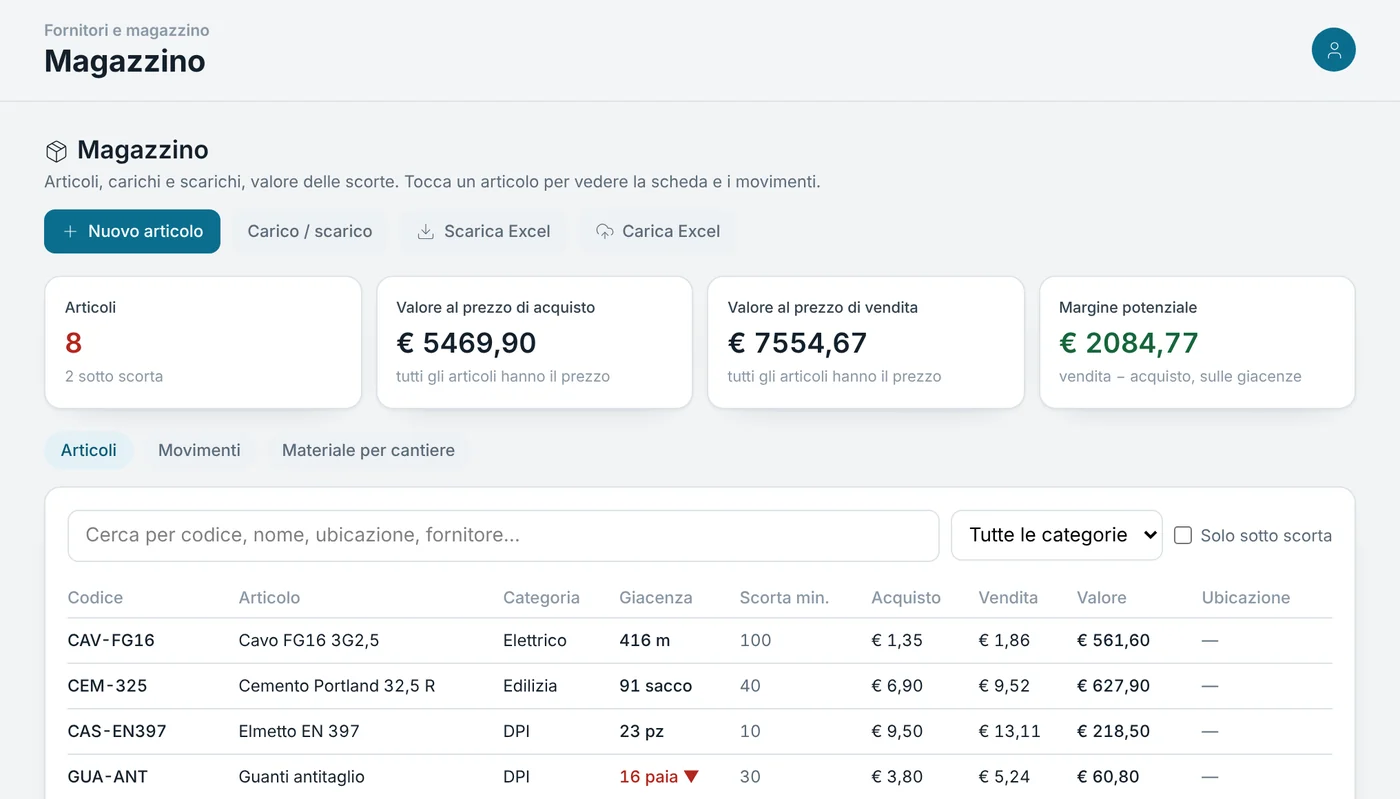
Items
Code, category, unit of measure, minimum stock, location, supplier, purchase and selling price. Items below minimum stock are highlighted.
Movements
Goods in with price and document reference, goods out to a site, stocktake adjustments. A wrong movement is reversed and the stock level is recalculated.
Warehouse value
Stock value at purchase and selling price, potential margin, totals by category and materials issued to each site.
Excel
Export in three sheets (items, summary, movements) and import from a sheet with code and name, with a preview of the changes before confirming.
Supplier portal
Subcontractors upload the documents. You validate them.
A dedicated section of your CoreJob, with your brand, where third-party companies manage workers, company documents, contracts and work orders.
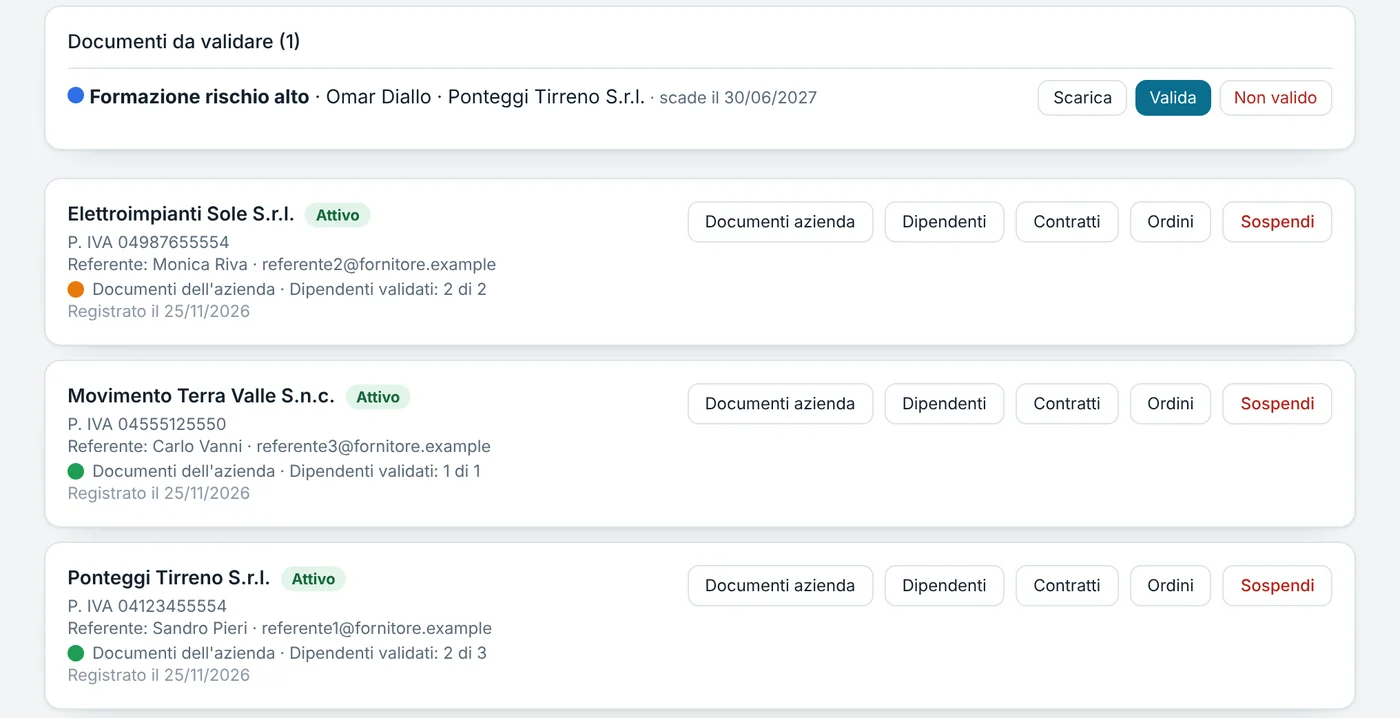
Workers
Identity card, tax code, training, medical check-up, PPE handover: a worker is compliant only when everything has been validated.
Company
Chamber of Commerce extract from the last three months, RCT/RCO liability insurance, DURC and full company details, with the same expiry dates and the same indicators.
Contracts
Downloaded, signed and uploaded again, or signed online with CoreDocs through “Sign now”.
Work orders
Number, amount, VAT and payment terms: the supplier receives the order as a PDF by email and accepts it in the portal.
Invoicing
From hours to invoice, without retyping anything.
Switched on in the configuration, CoreBill invoicing works inside CoreJob with the same customer and site records. If you use CoreBill as a separate product, the two programs are connected with a key.
To be invoiced
Site hours and trip statements become draft invoices, to check and issue.
Documents
Quotes, orders, pro formas, delivery notes, invoices and credit notes, with the numbering and the look you choose.
Electronic invoice
Sent to Italy's SdI exchange system, with a status that updates itself; supplier invoices arrive among the invoices received.
Overview and payment schedule
Turnover, payments received and amounts to collect, with the customers' payment schedule.
Announcements, contacts and PPE
Information between office and teams, in order.
Information that today travels through phone calls and messages finds an orderly place, with a notification for whoever needs to read it.
Announcements
A company noticeboard for everyone or for a single employee, with a notification on the smartphone; information emails to several groups in a single send.
Contacts
Customers, suppliers, project managers and administrative bodies, shared with those who need them.
PPE and workwear
Sizes, requests and handovers of personal protective equipment and workwear, employee by employee.
AI assistant
An assistant that works only within the powers you decide.
The assistant analyses the month's data and flags anomalies before they reach the consultant. On request it reads and updates the system, but only with the powers left switched on.
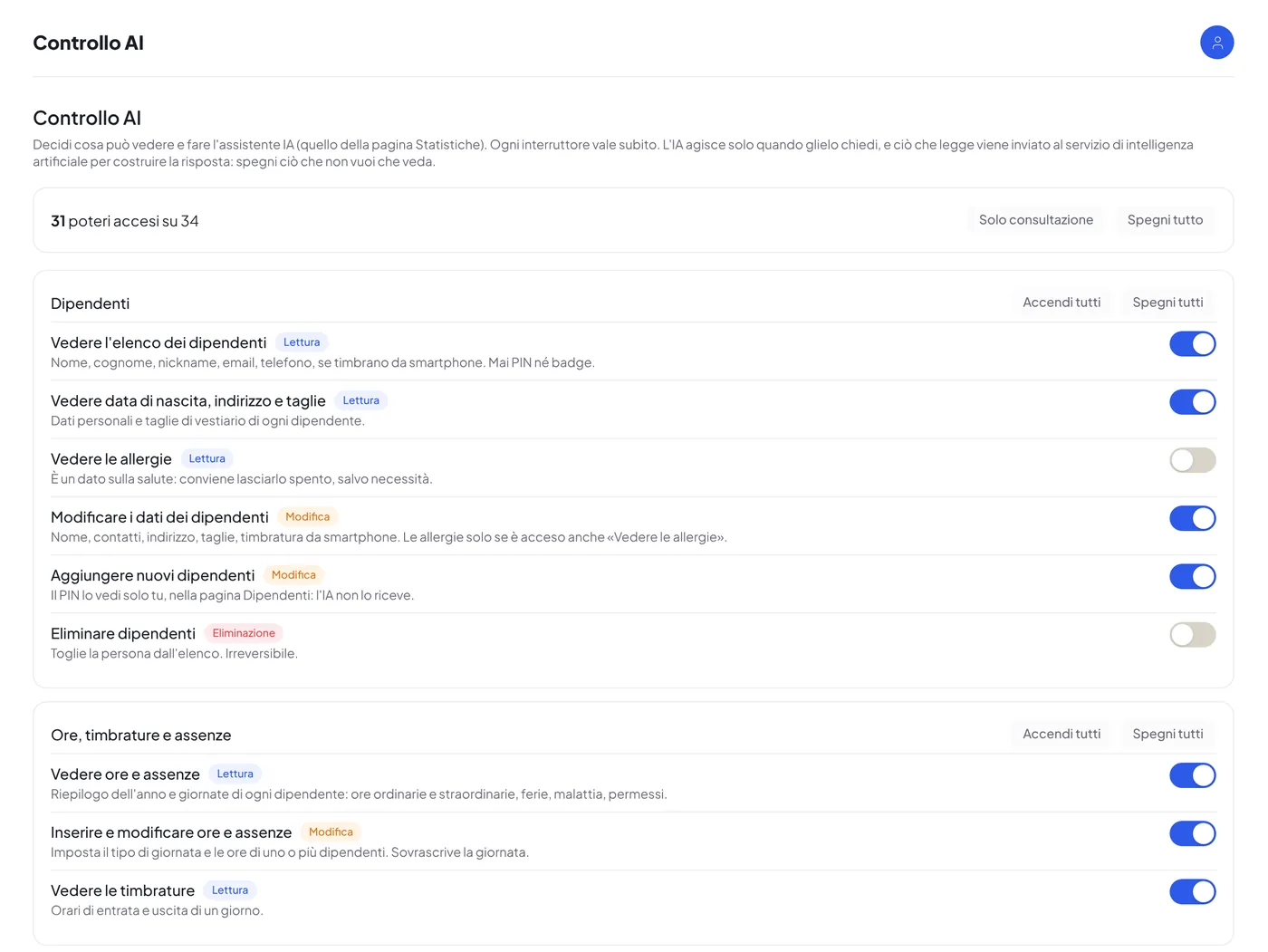
Alerts
Missing or unusual hours, out-of-the-ordinary expenses, documents about to expire: a summary in plain language, ready to read.
A switch for every power
Reading, editing and deleting are separate powers, grouped together; with “View only” the assistant looks but changes nothing.
What it never does
PINs and passwords, advanced settings, face data, badge codes, file contents and backups stay out of its reach, whatever the settings.
Log
Every operation by the assistant is logged, with the request that triggered it and the outcome; changes to permissions are recorded too.
Importing employees
Records created from a list, an Excel file or the payslip PDF, with an editable preview before confirming.
Support
Support, inside the software.
From the “Support” menu you can write to the assistant at any hour or open a request to our staff.
Chat at any hour
Answers on using CoreJob, with the guides they come from. CoreJob adds no data of its own: the assistant receives the question, the page you are writing from and the software version.
Tickets
Subject, category, priority and up to five attachments; if you wish, the installation's technical data, without personal data.
From chat to ticket
When the answer is not enough, the whole conversation becomes the first message of the request.
Customisation
Your brand, your rules.
Every installation carries the company's name and colours and switches on only the features you need.
Styles and menu
Logo, app name and colours; Standard, Dashboard, New and Classic styles, with colour variants; a menu divided by area: employees, customers, sites and trips, suppliers and warehouse, administration.
Employee interface
Four interfaces to choose from: the new one, the classic one, “Today” and “Month”.
Features you can switch on
Modules are switched on and off; the advanced configuration is divided into sections and protected.
Confirmations and history
Deleting an employee, a site, a project, a trip or a report requires confirmation; the hours of deleted employees stay in the monthly summaries.
Excel for customers
Statements and projects in Excel with your logo and colours, in two styles: classic or minimal.
Automatic emails
The texts of the emails the system sends are edited from the dashboard; the monthly summary can go out on its own.
Access and installation
On your server, on your employees' smartphones.
CoreJob is installed on a server dedicated to your company and is used from computers, tablets and smartphones.
Dedicated installation
One installation per company, on your own server or on one we manage, at your address over HTTPS; updates do not touch the data.
Management accounts
Administration and office sign in with their own account; the browser keeps only a session that expires, never the password.
Employee access
A personal PIN, temporary at first sign-in; temporary lockout after repeated failed attempts; forgotten PINs and passwords are recovered with a code by email.
iPhone and Android app
Published on the stores with your company's name and logo, with push notifications; alternatively the web app, added to the home screen.
Time clock
A tablet at the entrance, with face recognition, badge or name and PIN; it also works with a computer that has a camera.
Backup
A full backup that can be downloaded as a file and, with CoreCloud, automatic copies off the server.
See CoreJob at work.
Explore the demo with the data of a sample company, or book a presentation built around your own business.